GPT Image 2.5: how to show three product colours in one image
Three products in one picture can look like a family, or like a pile of options. The camera is what decides which.
The short version
Use one angle, one height and one light for all three versions, and give each one its own base. Then the reader compares colours instead of comparing three different photos.
Use one angle for all three products
Three objects in one picture can look like a family, or like a pile of options. The difference is almost always the camera.
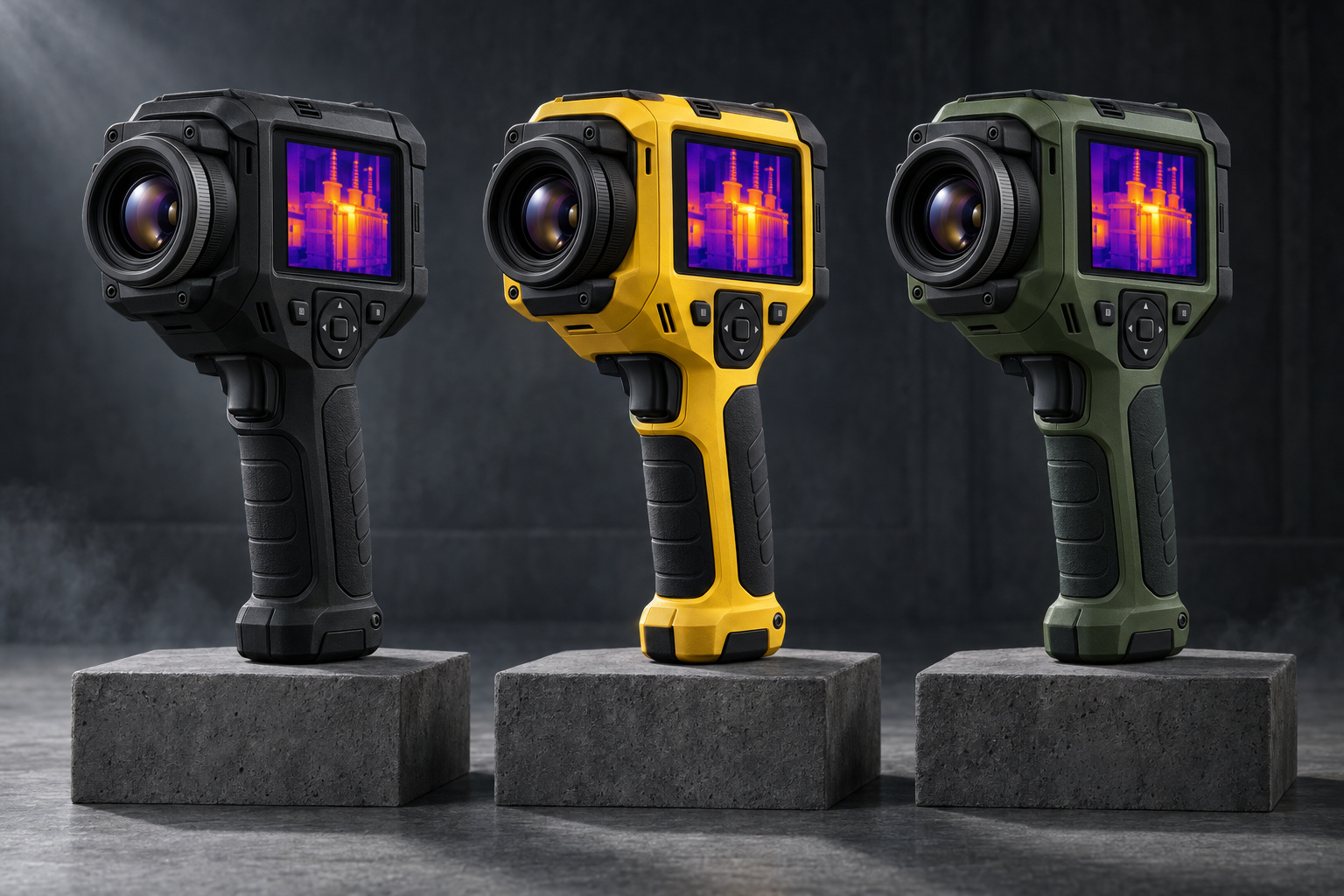
In this GPT Image 2.5 Sunburst example the three cameras stand upright, at the same height, shot from the same side, under the same light. Your eye has nothing to compare except the colour. That is exactly what a colour range picture is for.
Turn one of them slightly and the picture starts telling a different story. The turned one looks special. That may be what you want in an ad. It is not what you want when someone is choosing a colour.
Five layout rules that make the comparison readable
These are the choices you can actually see in the picture above. They are simple, and they work for bottles, shoes, phone cases and tools just as well as for cameras.
- Same pose. All three upright, all three facing the same way.
- Same height. Nothing sits higher than the rest.
- Own base. Each item gets its own block, so the group still reads as three products.
- Real gaps. Space between the shapes, so handles and edges do not touch.
- Quiet background. Dark and plain, so the colours stay the loudest thing in the frame.
The bases do more work than people expect. They lift the products off the bottom edge, they repeat the same shape three times, and they keep the eye moving sideways instead of wandering.
A prompt for a fair colour line-up
Three colours, one row
Studio product photo of three handheld thermal cameras in a row, shown from the same side at the same height. Left one matte black, middle one bright safety yellow, right one deep green. Each camera stands on its own small dark block, with clear space between them. Dark grey seamless background, soft even light from above, small highlight along each body. Sharp detail on the screens and grips. No text, no logos, no props.
Put the colour you want people to notice first in the middle. The eye starts there.
Two details in that prompt are doing the heavy lifting: same side at the same height and own small dark block. Drop them and you usually get three loosely arranged objects at three sizes.
If the model keeps merging the products into one shape, ask for more space between them and fewer items. Three is comfortable. Six in a single row rarely is.
Equal treatment beats identical copies
A colour range picture quietly recommends a product. If one version is bigger, brighter, better lit or shown from a nicer angle, that is the one people click.
So check the picture for accidental favourites:
- Is one item closer to the camera?
- Does one catch a highlight the others do not?
- Is the middle one larger because it is in the middle?
- Does one sit in shadow?
There is a second check that people skip. Look at the product itself, not the colour. Are the buttons in the same place on all three? Is the screen the same size? Is the grip the same shape? A colour change should never quietly become a different model of the product.
Good product photography has followed this rule for decades. A range shot shows the family. A separate photo shows each product properly.
Where a group shot helps, and where it does not
Use the group shot where people are still deciding. It works well at the top of a range page, in a launch post, in an email header or in a social square.
Do not use it as the main photo on a single product page. Someone who clicked on the green one wants to see the green one, large, from the angles they care about. A row of three makes them hunt.
A simple set that covers most shops:
- One group shot for the range page.
- One clean shot of each colour on its own.
- One close-up of the part people ask about, such as the screen or the grip.
- One picture of the product in use, for scale.
If you sell the items, remember that the picture becomes part of the offer. Google’s product structured data guide explains what search engines expect on a product page, and its image guidelines cover what makes product pictures work in image search. Generated artwork is fine for a concept or a launch story. For the actual listing, show the actual product.
Questions people ask
How many colours can I put in one image?
Three or four sit comfortably in a row. Beyond that, switch to a grid, or make several images. A crowded row makes every product smaller and harder to judge.
Should the background be dark or light?
Dark backgrounds make bright colours pop and hide dust. Light backgrounds suit pale products and look cleaner in a shop layout. Pick one and use it for the whole range.
Can I use a generated colour line-up on a product page?
Use it as artwork for a launch or a range overview. For the listing itself, use photos of the real product, because the picture is part of what the customer is buying.
Why does the model keep changing the product between colours?
Each generated image is drawn from scratch, so small details drift. Generate the row in one image rather than three separate ones, and check buttons, screens and grips before you publish.
Where to read more
Outside sources
- Product photography (Wikipedia)The standard approaches, including group and range shots.
- Google: product structured dataWhat search engines expect to find on a page that sells something.
- Google: image guidelinesPractical advice on images, alt text and file size.
More from DaFreeAi
- When an AI image is not good enough for a product pageWhere the line sits between artwork and a product photo.
- How to leave room for text in a product adThe same product, but built for a headline.
- GPT Image 2.5 portrait promptsLetting the setting explain the subject.
- GPT Image 2.5 SunburstThe gallery this line-up comes from.
Build your own colour row
Paste the prompt, change the product and the three colours, and keep the angle line as it is.
Open GPT Image 2.5Updated 12 September 2026.