GPT Image 2.5 portrait prompts that show the job
A good portrait tells you what someone does before you read a single word. That work is done by the room, not by the face.
The short version
Name the person, the place and three or four objects from their job. Keep their hands and their work in the frame. Then pick the crop that fits the spot on your page.
Why the room matters as much as the face
A passport photo only needs a face. A portrait on a website has a bigger job. It has to show who someone is and why they are worth reading about.
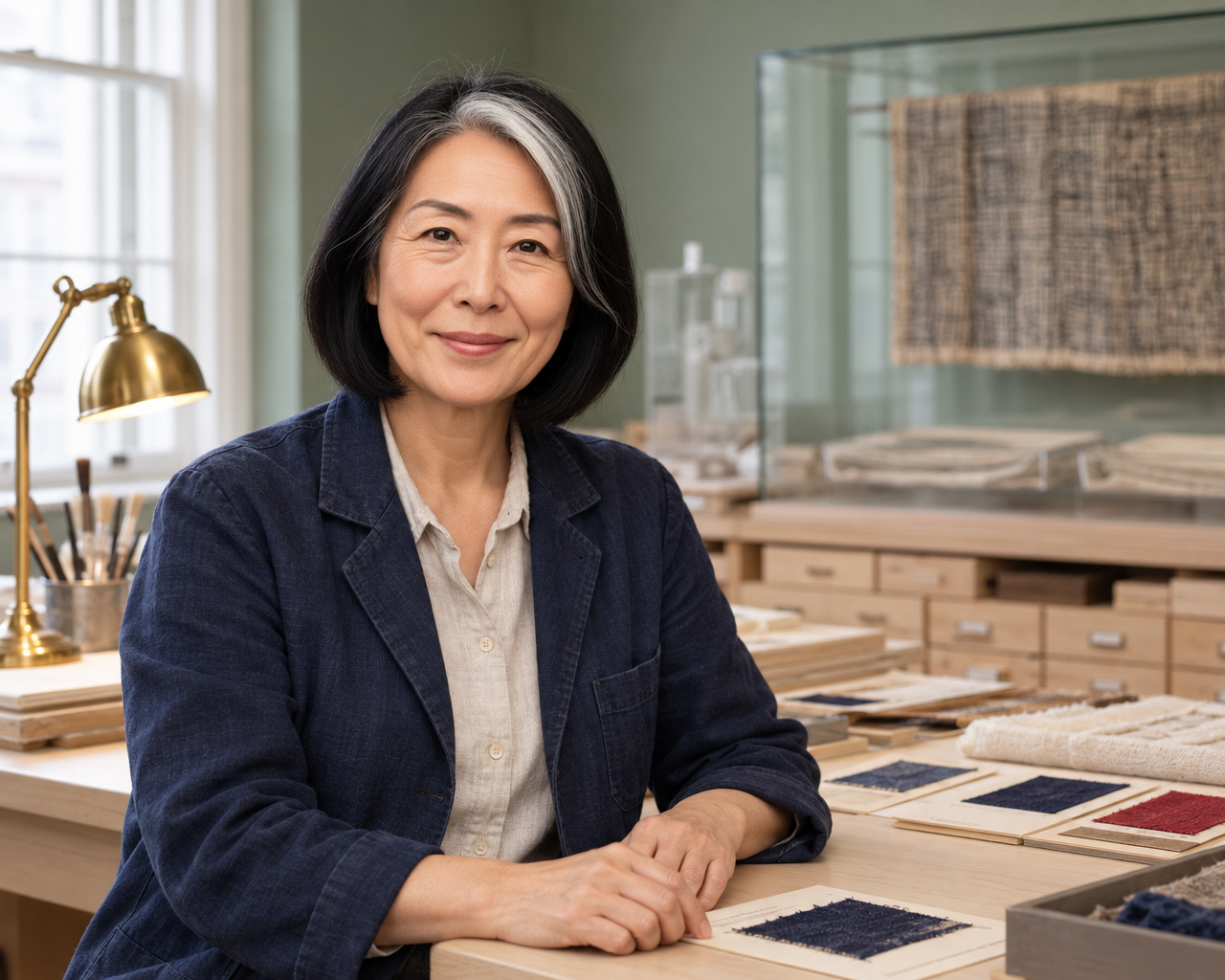
The room does most of that work. In the GPT Image 2.5 Sunburst example above you see fabric samples on the table, a lamp bent over the work, a bright window and cloth hanging on the wall. You know what she does before anyone tells you.
Now put the same person in front of a grey wall. The photo is still sharp. It just says a lot less.
So the first thing to write in your prompt is not the face. It is the place.
A simple prompt recipe you can reuse
Weak portrait prompts are usually weak for the same reason. They describe a person and then stop. Add four more lines and the picture changes a lot.
- Person: rough age, clothes, and what they are doing right now.
- Place: one clear room, not a nice office.
- Objects: three or four things that belong to the job.
- Light: where the light comes from.
- Frame: how much of the person you want to see.
A portrait that shows the work
Editorial portrait of a textile conservator in her workshop. She sits at a wooden workbench and looks at the camera. On the bench: folded fabric samples, small tools and a brass task lamp bent over the work. Daylight from a tall window on the left, warm lamp light on her hands. Frame her from the knees up so the bench fills the bottom of the picture. Calm colours, natural skin tones, no text, no logos.
Swap the job, the room and the objects. Keep the five lines. That is the whole trick.
Three or four objects is usually enough. Ten objects turn a portrait into a shop window, and the model has to share its attention across all of them.
Keep the hands and the work in the frame
Look at where the table sits in the example. It comes towards the camera, so her hands and the cloth share the bottom of the picture.
That small thing changes how the portrait reads. She is in the room, not standing in front of it. Cut the picture just under her shoulders and you get a nice face and throw away the reason you picked this image.
Two easy ways to keep that link:
- Ask for the work surface in the front of the picture, not behind the person.
- Ask for busy hands: holding, folding, measuring, pointing. Hands doing nothing look posed.
A chef needs more than a white jacket. A repair specialist needs more than a tool held up to the camera. The picture is stronger when the person is clearly in the middle of doing something.
Pick the right crop for the job
One good portrait can serve three different spots on your site. Crop it for the spot, not for the frame you happen to like most.
| Crop | Good for | What you give up |
|---|---|---|
| Head and shoulders | Small author photo, team grid, avatar | All the job detail |
| Person plus workbench | The big photo at the top of a profile | The wider room |
| Wide room | A story about the place or the company | Face detail at small sizes |
A crop only rearranges what is already there. It cannot show you the other side of the room, and it cannot add a window that was never generated. If you need a different view, write a new prompt.
When you do crop, watch where the eyes land. The old rule of thirds is a quick sanity check: eyes roughly a third of the way down the frame usually feels right.
Label an AI portrait honestly
The woman above does not exist. The picture is artwork, not a photo of a real conservator in a real museum.
That matters once you publish. Do not give her a name, a quote or a job title. Do not use her on an about us page as a staff member. Do not put her next to a customer review. Those are the mistakes that turn a nice image into a problem you have to apologise for later.
What you can do instead:
- Say it is an illustration in the caption. One short line is enough.
- Keep the generated file separate from your folder of real staff photos.
- Keep the label in the file if your tools support it. C2PA is the group behind Content Credentials, which record how a file was made.
- Write real alt text that describes what is in the picture. The W3C images tutorial shows how.
None of this stops you from using AI pictures. Google’s page on AI content in Search explains how it looks at content made with AI. Being clear about what the picture is costs you nothing and protects the rest of your page.
Questions people ask
Can I use an AI portrait as a real staff photo?
No. Use it as an illustration for a story, a concept or a design test. The moment you attach a real name, job title or quote, you are telling readers something that is not true.
How many objects should I ask for?
Three or four. Enough to explain the job, few enough that the model can draw each one properly. Long shopping lists usually come back messy.
Why does my portrait look like a generic stock photo?
Because the prompt only described a person. Add the room, three job objects, where the light comes from and how wide the frame should be. That is normally the whole fix.
Should the person look at the camera?
Looking at the camera feels direct and works well for a profile. Looking at their work feels more like reportage. Say which one you want, otherwise you get a coin flip.
Where to read more
Outside sources
- Portrait photography (Wikipedia)A plain overview of the craft, including lighting and setting.
- W3C: images tutorialHow to write alt text so your picture works for everyone.
- C2PAThe group behind Content Credentials, the labels that record how a file was made.
More from DaFreeAi
- When an AI image is not good enough for a product pageThe same honesty question, for things you sell.
- How to put a title inside a pictureWhat to do when the image also has to carry text.
- Three product colours in one imageThe same thinking, applied to a product line-up.
- GPT Image 2.5 SunburstThe gallery this portrait comes from.
Try the portrait recipe
Paste the prompt above, then swap in your own job, room and objects.
Open a modelUpdated 12 September 2026.